DEVICE / IPHONE
Buy and open Shadowrocket on iPhone
On your iPhone, open the App Store product page from this guide. Verify the three app details, price, and compatibility, then confirm the purchase as prompted. Check the App Store listing for system requirements; don’t assume your current device qualifies just because the app worked on another device. Payment completion and download completion are separate statuses, so check both.
After confirming the purchase, wait for the App Store to finish downloading the app, then open Shadowrocket from the Home Screen or product page. If the download stays pending, check your network connection, available storage, and any payment or verification prompts on your account. If you’ve been charged, check your purchase history and Purchased before treating the delay as a reason to pay again.
System authorization before the first connection
Opening the app for the first time and establishing a connection for the first time are separate steps. When you’re ready to add or enable a VPN configuration, the system may ask for permission and require your device passcode or biometric authentication. This authorizes a connection configuration on your device; it isn’t another app purchase. Verify that you’re acting in Shadowrocket before approving the request.
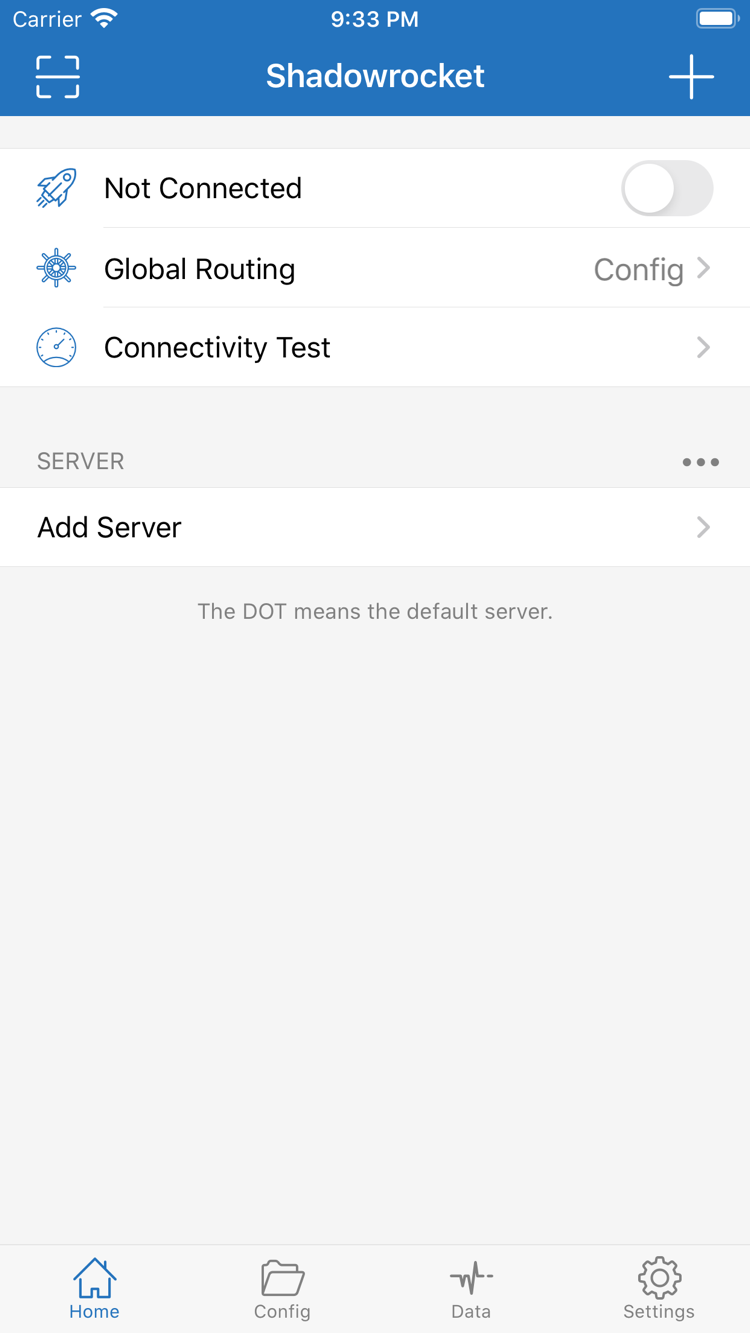
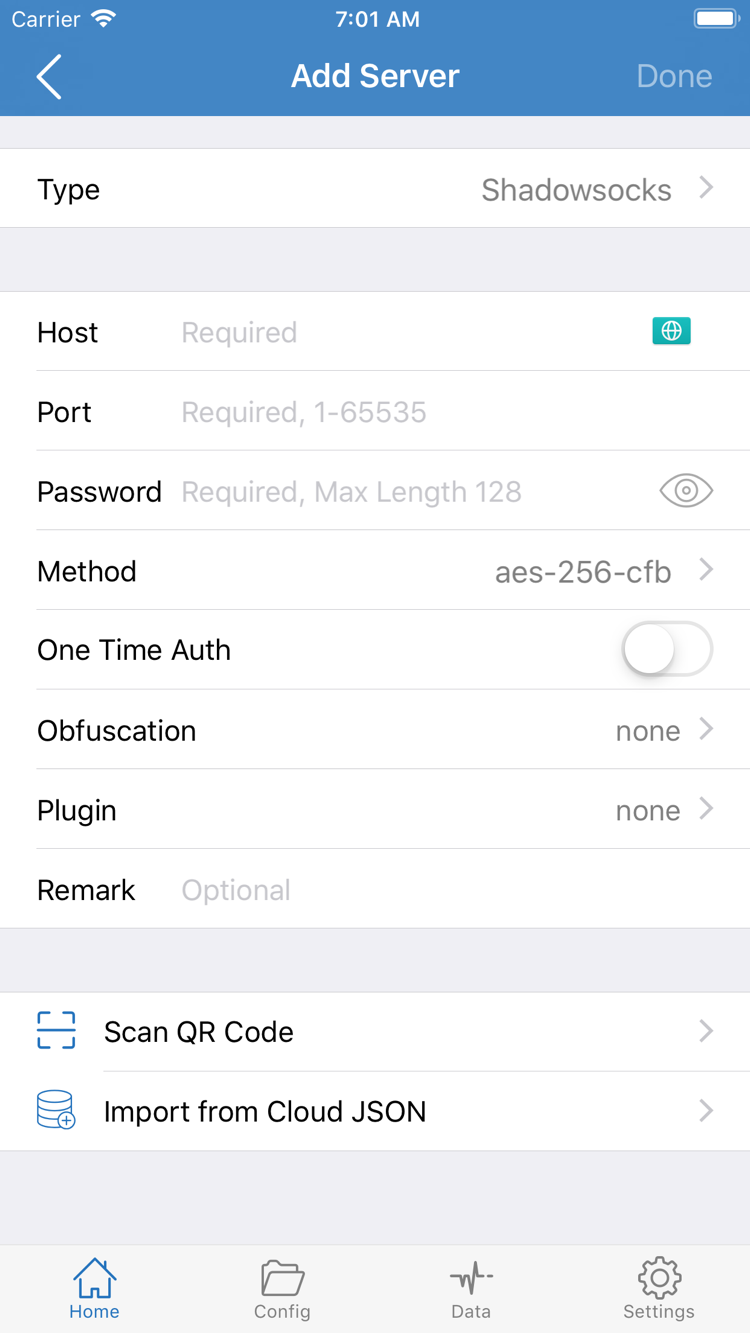
System authorization doesn’t mean your server details are ready. First import your existing subscription or enter parameters from your own server details, then check Global Routing. Config, Proxy, and Direct refer to configuration, proxy, and direct connection modes. During setup, there’s no need to change them just to make the app display a particular status.
For a step-by-step setup, see the setup guide. First check that a manual connection and basic access work as expected, then consider automatic triggers such as On Demand. This makes it easier to tell whether an issue relates to your details, connection method, or trigger conditions.