Shadowrocket is purchased and installed through the App Store. This guide is for first-time buyers and anyone setting up a new device. Verify the app, confirm your purchase account, store price, and device compatibility, then download it. The app purchase is separate from any service subscription you already have, and installing the app does not automatically provide a connection configuration.
Before you buy: Check your store account and device requirements
Shadowrocket is a paid app for Apple platforms, primarily used on iPhone and iPad. The App Store is the only place to get it. Compatibility with Mac, Apple TV, and Apple Vision is also listed on the product page. Check the App Store listing for system requirements, device compatibility, and whether the purchase is universal; do not infer compatibility from a purchase on another device.
Before buying, distinguish between the Apple Account used for iCloud at the top of Settings and the account used for Media & Purchases. These may be different. Check the latter to confirm which account the App Store purchase will be associated with. If you change devices later, you’ll need the account used for the original purchase—not just confirmation that your photos and contacts have synced.
- In Settings, open your account page → Media & Purchases → View Account to check the account currently used for store purchases.
- To check the store region, look for Country/Region on the account page above. App availability and pricing depend on what the selected store displays.
- Expand the compatibility information on the Shadowrocket product page and confirm your device and system meet the requirements before paying.
- Have a payment method accepted by your current store ready. Enter payment and billing details as prompted by the App Store.
Search results: Verify the developer, icon, and app ID
Open Search in the App Store and enter the full English name Shadowrocket. A translated name may help you recognize the app, but verify its identity on the product page. Do not rely on a similar name, search ranking, keywords, or a similar-looking icon to decide what to buy.
On the product page, check the developer name first, then the official app icon, and finally the app ID in the product link. The developer may appear near the app name or in the information section further down the page. Compare the full developer name rather than checking only for the word Shadow.
| What to verify | Details to check | Where to check |
|---|---|---|
| App name | Shadowrocket | Title on the App Store product page |
| Developer | Shadow Launch Technology Limited | Developer information on the product page |
| Official app icon | 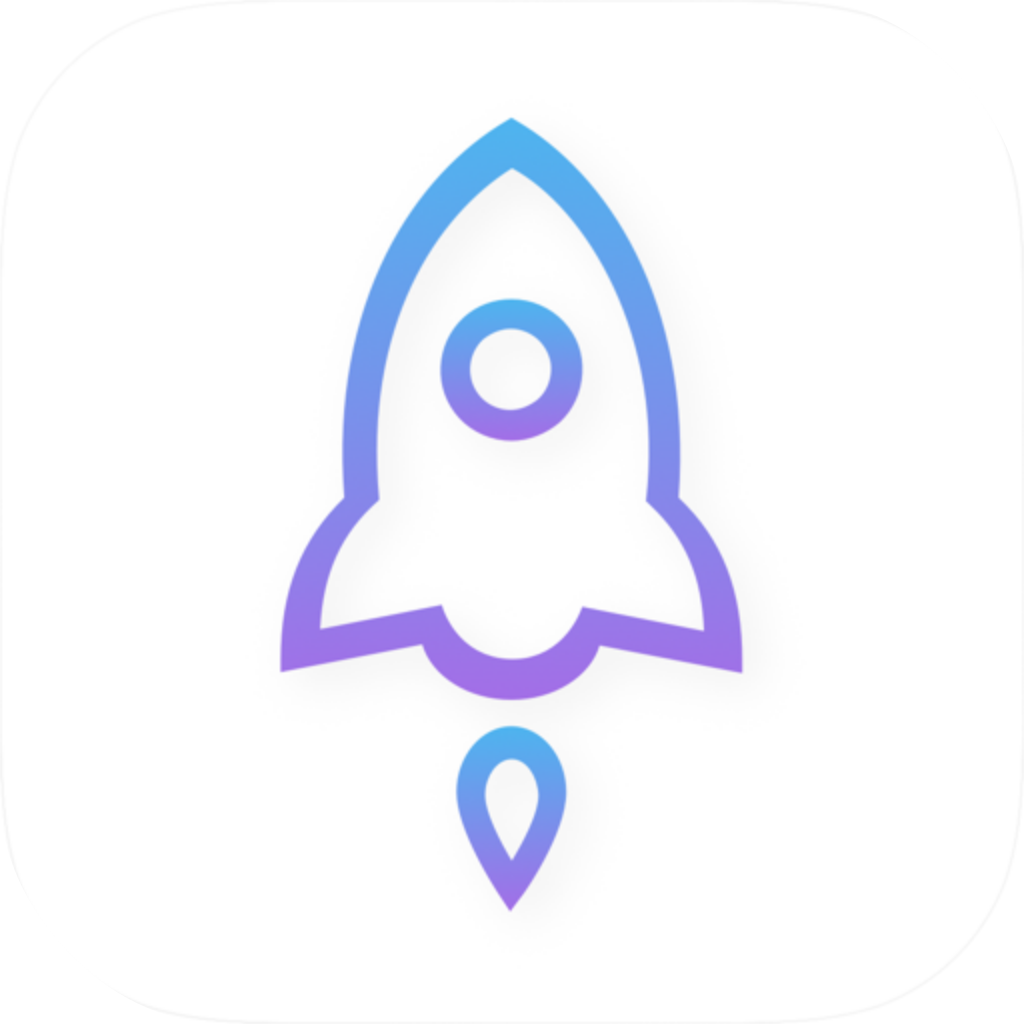 | Compare the product page icon with the official asset shown here |
| App ID | 932747118 | id932747118 at the end of the product link |
If anything doesn’t match, stop before paying
If you can’t verify any item, return to the official app verification section in the download guide and check again. Don’t substitute a similar name or a high search ranking for verifying the app’s identity.
Buy and download: From the price button to installation
Once you’ve confirmed it’s the right app, check the current price. Currency, tax display, and payment terms can vary between stores, so this guide doesn’t list a fixed price or estimate the charge from a screenshot. Use the product and amount shown on the payment confirmation screen.
-
Open the App Store
Go to App Store → Search, search for Shadowrocket, and open its product page. If it doesn’t appear in search, check store availability in the next section.
-
Verify the app
Check Shadow Launch Technology Limited, the official app icon, and app ID 932747118. Also review the compatibility information.
-
Check the price
Confirm the price and currency on the product page, then check the account under Media & Purchases again. If the button says Open, the app is already installed on this device and you can launch it directly.
-
Confirm the purchase
Tap the price button and review the system payment confirmation screen. Follow the prompts to confirm with Face ID, Touch ID, or your account password. The system determines whether additional verification is required.
-
Wait for installation
Wait for the download to finish. When the button changes to Open, launch the app. Opening it for the first time and adding a VPN configuration are separate steps, not another app purchase.
If the download doesn’t start after payment confirmation, stay in the App Store and check its progress and prompts. Don’t make repeated purchases. Check Purchase History on your account page to see whether a transaction was recorded. Purchase History confirms transactions; the purchased apps list is mainly for redownloading apps. They serve different purposes.
- Download stuck waiting: Check available device storage, your network connection, and the reason shown by the App Store, then try resuming the download.
- Payment method declined: Check your billing details and payment method against the store’s instructions. Connection settings in the app cannot fix an App Store billing issue.
- Purchase restriction: Check the purchase permissions under Screen Time. A child account may also require approval from the family organizer.
Can’t find the app? Check the store region before trying more search terms
App Store search results depend on the region of the store associated with your account. Searching in English instead of using a translated name may help find the app, but it won’t change its availability in your store. Your device’s system language is not the same as the store region; changing the language won’t switch the store used for purchases.
If the full English name still returns no results, open the App Store product page from the download guide and check whether the store says the app is unavailable in your country or region. Opening the product page directly can help distinguish a search issue from store unavailability, but it won’t bypass regional or compatibility restrictions.
- Note the account and the Country/Region shown on this device. Don’t assume the store status on another device is the same as yours.
- If the product page says your system or device is incompatible, check the compatibility section. Don’t treat a compatibility issue as a payment issue.
- Before changing your account’s country or region, review the system’s requirements for your balance, subscriptions, Family Sharing, and payment method. Don’t confirm a change just to see different search results.
- If the product page is available but payment won’t go through, focus on the specific message on the payment screen instead of changing your search terms.
Restore on a new device: Redownload from the purchasing account’s apps
When switching devices or reinstalling the app after deleting it, first check which account made the purchase. Sign in to the App Store with that account and look for Shadowrocket in its purchased apps, subject to the current store and device requirements. System menu names can change with software versions; the purchased apps section may appear as “Apps,” “My Apps,” or “Purchased.” Follow the labels shown on your device.
- Open Settings → your account page → Media & Purchases and confirm it’s the account used for the original purchase.
- Open App Store → tap the account avatar in the upper-right corner, then go to the apps or purchased items list and look for Shadowrocket.
- If there’s a Not on this device filter, use it to narrow the list. Tap the cloud download button next to Shadowrocket.
- If you’ve already purchased the app but still see a price, pause and check your purchase history, account, and current store region. Don’t pay again without checking.
Redownloading the app and restoring connection data are separate tasks. App Store purchase history is not a backup of your Shadowrocket configuration. Reinstalling the app alone won’t automatically restore subscriptions, rules, or other settings. Before switching devices, make sure you can access your existing subscription and keep any configuration data you’ll need to restore.
After installation: App purchase and connection configuration are separate
After launching the app for the first time, use Home to view connection items and status, Config to manage configuration files, and Settings to adjust app settings. A successful purchase means the app is acquired and installed. You still need to import and verify your own data. An App Store payment confirmation does not indicate that a connection test has succeeded.
When you first try to connect, the system may ask to add a VPN configuration. Make sure the request comes from Shadowrocket’s setup flow, then authorize it as prompted. Authorization doesn’t mean all traffic will use the same routing policy. What happens depends on the selection in Home, the Global Routing mode, and the active configuration.
- Make sure you already have a valid subscription or connection details, then follow the setup guide to import them. Don’t post your service password or full subscription URL publicly.
- Check Global Routing: Proxy, Direct, Config, and Scene apply different handling modes. Turning on the connection alone doesn’t mean traffic is being routed according to Config rules.
- To use the rules in a configuration, check the selected Config and Global Routing mode. Keep a copy of the existing configuration before making changes so you can restore it if needed.
- For purchase issues, check your App Store account, payment method, and purchase history. For import or connection issues, check the relevant settings in the app.
Common purchase questions: What to check on each screen
I already bought it. Why do I still see a price?
Go to Settings → your account page → Media & Purchases and confirm the account used for the original purchase. Then look for the transaction in App Store Purchase History. Using the same iCloud account doesn’t prove that the store purchase account is the same. Don’t pay again until you’ve checked the transaction.
I bought it on iPhone. Do I need to buy it again for iPad?
On your iPad, sign in with the account used for the original purchase and check the same product page or purchased apps list for a cloud download button. Check the App Store listing for universal purchase and device compatibility. If a price still appears, check the account and purchase history first.
What if I can’t find the app after paying?
Check the download status on the App Store product page and make sure your device has enough storage. If the button says Open, launch the app from there or search for Shadowrocket in the App Library. Not seeing an icon on the Home Screen alone doesn’t mean the purchase failed.
Why do I need subscription details after buying the app?
The app purchase and any service you already use are separate. Check that your subscription is still active, then import it using the setup guide. Don’t enter an App Store receipt as a subscription URL or mistake the app price for a service renewal fee.